




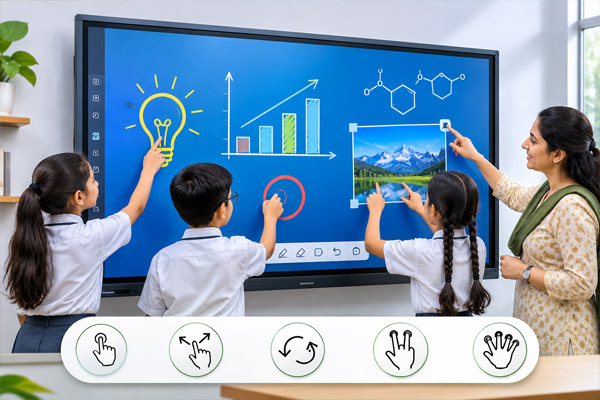
What Is Multi Touch on an Interactive Flat Panel Display
Multi touch is a feature that allows an interactive flat panel display to recognise more than one touch on its screen at the same time. It lets users write, draw, move objects or interact with content using their fingers or compatible touch pens.
In a classroom, multi touch can allow students to work together on an activity. In a meeting room, team members can use the display to discuss ideas, mark up documents and make changes during a presentation. The number of simultaneous touches and available actions depend on the display model and software.
How Does Multi Touch Work on an Interactive Display?
An interactive flat panel display uses touch sensors to detect contact with the screen. When a user touches the display, the system identifies the touch position and sends that information to the connected computer or built-in software.
With multi touch, the display can recognise several touch points at once. The software then interprets those touches as actions such as writing, drawing, tapping or moving an object.
For example, a teacher may write a question on the screen while students use supported tools to work on different parts of the answer. The exact actions available depend on the application being used.
What Are Touch Points on an Interactive Flat Panel?
A touch point is a point of contact that the display can detect. A display described as supporting 20 touch points can detect up to 20 simultaneous contacts under supported conditions.
However, 20 touch points do not necessarily mean 20 people can write at the same time. A single gesture may use more than one touch point, and the operating system or application may limit the number of users who can write or perform other actions together.
Before buying an interactive panel, ask the supplier to explain both the number of touch points and how many users can write simultaneously in the software you plan to use.
Single Touch vs Multi Touch Displays
| Feature | Single Touch | Multi Touch |
|---|---|---|
| Touch Input | Recognises one touch point at a time | Recognises multiple touch points at once |
| Typical Use | Tapping menus or selecting content | Writing, gestures and shared activities |
| Group Interaction | Usually one person interacts at a time | Multiple users may interact, depending on the software |
| Gestures | More limited | May support gestures such as pinch to zoom |
Multi touch is useful when several people need to participate directly at the screen. The experience will still depend on the display, connected device and application.
How Can Multi Touch Help in a Classroom?
An interactive flat panel with multi touch can give teachers more ways to involve students in lessons. Instead of only watching a presentation, students can come to the screen and take part in an activity.
Group problem solving
Students can work together on a maths problem, label a diagram or arrange items on the screen. The teacher can guide the activity and discuss the answers with the class.
Drawing and annotation
Teachers can write notes over lesson material, highlight key points or draw diagrams. Compatible software may also let students add their own ideas to the same activity.
Interactive learning activities
Some educational applications allow students to match words, move shapes or sort information. Multi touch can make these activities more practical when more than one student is working at the display.
How Can Multi Touch Help in Offices and Meeting Rooms?
Multi touch can also support meetings, presentations and training sessions. Teams can use a compatible interactive display to work directly with the content on the screen.
Common uses include:
- Writing ideas during a brainstorming session
- Marking up drawings or documents
- Moving items on a digital workspace
- Highlighting points in a presentation
- Working together on training exercises
Before choosing a display for an office, check whether its touch features work with the devices and applications your team already uses.
What Can You Do With Multi Touch Gestures?
| Gesture | Possible Action |
|---|---|
| Tap | Select an item or open a tool |
| Drag | Move an object across the screen |
| Pinch | Zoom in or out of supported content |
| Swipe | Move between pages or navigate content |
| Touch and Draw | Write or sketch using a finger or compatible pen |
Gesture support varies. Ask for a demonstration using the files and applications you expect to use in your classroom or meeting room.
How Many Touch Points Do You Need?
The right number of touch points depends on how the display will be used. A teacher who mainly presents lessons and writes alone may have different needs from a school that regularly runs group activities at the screen.
Consider these questions:
- How many people will use the screen at the same time?
- Do they need to write together or only move objects?
- Will users work with fingers, touch pens or both?
- Does the chosen software support simultaneous input?
- Will the display be used with a built-in system or an external computer?
A live demonstration is a practical way to see whether the touch response and software meet your needs.
What Should You Check When Buying a Multi Touch Display?
Along with touch points, consider the following features:
- Screen size: Choose a size that suits the room and viewing distance.
- Display clarity: Check whether text and lesson material are easy to read from the back of the room.
- Touch response: Try writing, drawing and moving objects on the display.
- Software compatibility: Test the applications you plan to use.
- Connectivity: Check the available connections for your laptops and other devices.
- Installation: Decide whether a wall mount or compatible trolley stand is suitable.
- Support: Ask about installation, training, warranty and after-sales assistance.
Elora Board’s Epson Interactive Flat Panel Display page lists multi touch among its features. Confirm the specifications and supported functions for the specific model before purchase.
Frequently Asked Questions
Multi touch means the display can recognise more than one touch point on the screen at the same time. Supported software interprets these touches as actions such as writing, tapping or moving content.
Some interactive displays and applications support simultaneous writing by multiple users. The number of users depends on the display model, operating system and software.
No. Touch points refer to the number of contacts a screen can detect. The number of people who can write or interact together also depends on the gestures and software being used.
Many interactive displays support finger input. Some also work with compatible pens. Check the product specifications for the model you are considering.
It can work with a compatible laptop, provided the required connections, drivers and software support touch input. Ask the supplier to demonstrate the setup with your device.
Yes. It can help teams annotate documents, share ideas and interact with content during meetings, depending on the tools supported by the display and software.
Ask for a demonstration using your own applications or sample files. Try writing, drawing, zooming and having multiple people interact at the same time.